![TrustMate_logo_white-2.svg]](https://knowledge.trustmate.io/hubfs/TrustMate_logo_white-2.svg)
What will you find in this article?
- What is mediation?
- Who can use mediation?
- How to start a mediation?
- Automated mediations – how to save time and respond faster?
- How can mediation end?
- What if mediation is not available?
- Frequently Asked Questions (FAQ)
What is mediation?
Mediation is a private conversation between a business and a customer, conducted out of public view. It lasts for a maximum of 21 days, during which the original review is hidden and replaced on the website with a message stating that mediation is in progress. Additionally, the review does not count towards the average rating.
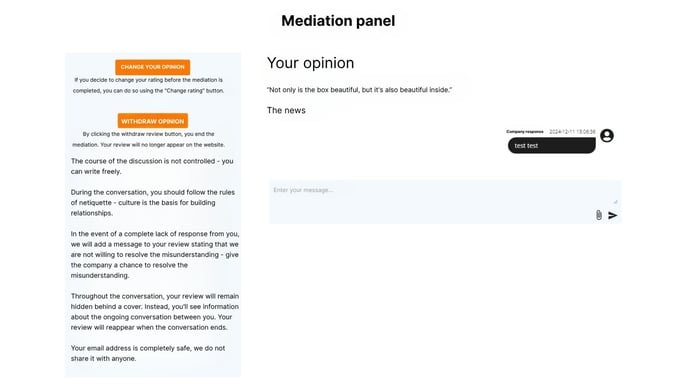
When mediation begins, the customer receives an email informing them that the store wants to understand the reason for their dissatisfaction. By clicking a button in the email, the customer is redirected to a browser-based chat window with the store.

During the mediation process, the customer can edit or withdraw their review. If they do not respond to any messages from the store within 21 days, the mediation will be closed, and the review will remain hidden with a message indicating that the customer did not engage.
If the customer participates but maintains their original opinion, the review will be restored in its original form at the end of the mediation.
Who can use mediation?
Availability depends on the type of review and subscription plan:
Business review mediation is available starting from the TrustStart plan.
Product review mediation is available from the TrustPro plan.

How to start mediation?
To start mediation, go to the “Reviews” tab in your panel and select the specific review.
Business reviews: Reviews → Business → Selected review → Mediate

Product reviews: Reviews → Product → Selected review → Mediate

After sending the first message, the 21-day mediation period begins.
Automated mediations – how to save time and respond faster?
With TrustMate, you don't have to start every mediation manually. The system can automatically send the first message to the customer after a negative review is posted – even within 10 minutes.
How to enable automatic mediations?
Go to Mediations → Settings and enable automatic mediation for the selected review types.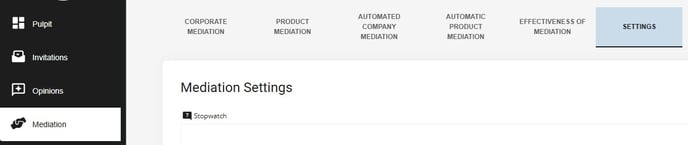
Then, in Mediations → Automatic product/business mediations, set the message that will be sent to customers.
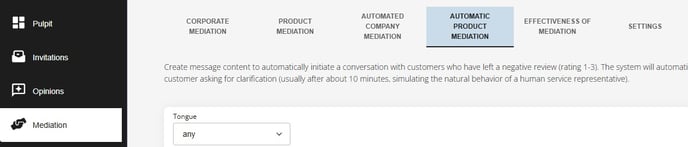
This solution allows for faster responses and increases the chance of a positive outcome
How can mediation end?
Mediation can end in three ways:
Agreement – the customer edits or removes their review. This can be done via the mediation panel or by clicking “Edit review” / “Withdraw review” in the email.
No response from the customer – if the customer does not respond within 21 days, the review remains hidden and does not return to the site.
No agreement – if the parties do not reach a compromise, the review is restored in its original form and with its original date.
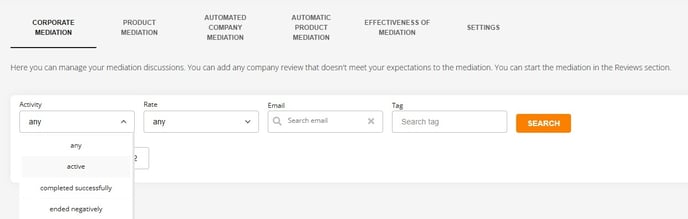
The store can also end the mediation unilaterally in Mediations → Active mediations, which will immediately restore the review in its current form. Note that if the customer has not responded, ending the mediation means the review is permanently restored.
What if mediation is not available?
Not all reviews are eligible for mediation. If a review does not have this option, the company can:
Reply publicly – a comment shows other customers that the company is responsive.
Encourage the customer to contact TrustMate – the customer can email omnibus@trustmate.io from the email address used when submitting the review.
Report a legal violation – if the review contains illegal content, it can be reported to the appropriate authorities.
Frequently Asked Questions (FAQ)
- What is review mediation?
Mediation is a private conversation between the store and the person who left the review. It lasts 21 days. During this time, the negative review is hidden, and both sides can exchange messages. - What are the possible outcomes of mediation?
Mediation can end in three ways:
– The customer edits or removes their review,
– The customer does not respond within 21 days – the review is not restored,
– No agreement is reached – the review returns in its original form and date. - Can I edit or delete a review during mediation as a store?
No. Only the author of the review can edit or delete it. - Can I edit or delete a review during mediation as a customer?
Yes, if you are the author, you can edit or delete it directly from the mediation panel. - Do I have to respond to mediation as a customer?
No, but if you reply even once, the review will be restored in its original form after mediation ends. - Can the store end mediation early? How can mediation be ended faster?
For the store: Yes, the store can end mediation unilaterally at any time by clicking “End mediation” next to the review in the TrustMate panel. After ending, the review is restored in its current form. If the customer hasn’t responded, this action results in the review being permanently restored.
For the customer: The customer cannot end the mediation directly but can edit or delete the review, which ends the mediation automatically. If no action is taken, mediation will end automatically after 21 days. - What happens if the reviewer does not respond during mediation?
The review will not be restored to the site and will not impact the store’s average rating. - Can every review go through mediation?
No. Business review mediation is available from the TrustStart plan, and product review mediation from the TrustPro plan. - How to start mediation?
Business reviews: Panel → Reviews → Business → Selected review → “Mediate”
Product reviews: Panel → Reviews → Product → Selected review → “Mediate” - Can I enable automatic mediation?
Yes, go to “Mediations” → “Settings” to enable automatic mediation. The system will automatically send the first message within 10 minutes of receiving a negative review. - What can I do if mediation isn’t available for a product review?
If mediation is not available for a product review, you have several options:
– Direct contact with TrustMate – the reviewer can email omnibus@trustmate.io from the same email address they used when posting the review. They’ll receive instructions on how to edit or delete it.
– Comment under the review – you can publicly comment on any review, even negative ones. This shows that the company is actively responding and may help rebuild trust.
– Legal notice – if the review violates the law (e.g., defamation, personal data, offensive content), you can report it to law enforcement (e.g., police or prosecutor’s office). If TrustMate receives an official legal order (e.g., court ruling), the content will be removed according to the law. - How can the reviewer edit their review?
🔹Option 1: During an active mediation
a. The store initiates mediation via their panel – selects the review, clicks “Mediate”, writes a message, and sends it.
b. The buyer receives an email at the address used for the review (or order), stating the seller wants to discuss the matter.
c. The email includes a “Go to mediation” button. Clicking it takes the buyer to the private mediation panel.
d. The buyer sees the review details and the store’s message. They can reply and use two buttons:
– “Edit review” – to change the content,
– “Withdraw review” – to completely remove it.
e. If they reach an agreement, the buyer clicks “Edit review” and confirms the new content.
🔹Option 2: Outside of mediation
The buyer emails omnibus@trustmate.io from the same address used to post the original review and requests the change. - How can the reviewer delete their review?
🔹Option 1: During an active mediation
a. The store starts mediation – clicks “Mediate”, writes a message, and sends it via the panel.
b. The buyer receives an email with a “Go to mediation” button.
c. After clicking, they enter the private mediation panel where they see the review and the store’s message.
d. The buyer can:
– reply to the message,
– click the “Withdraw review” button – the review is immediately removed from the system.
🔹Option 2: Outside of mediation
The buyer sends a message requesting deletion to omnibus@trustmate.io using the same email address that was used when posting the review.
Want to build a positive image, encourage dialogue, and show that you can resolve conflicts with professionalism? Mediation is the perfect tool for your brand.