![TrustMate_logo_white-2.svg]](https://knowledge.trustmate.io/hubfs/TrustMate_logo_white-2.svg)
To manually send invitations, you first need to create an invitation configuration. You can read about how to do this in this article.
How to send review invitations manually?
- Log in to your TrustMate panel.
- Go to the "Invitations" tab.
- Navigate to the "Manual invitations" tab and choose one of the three methods for uploading data.
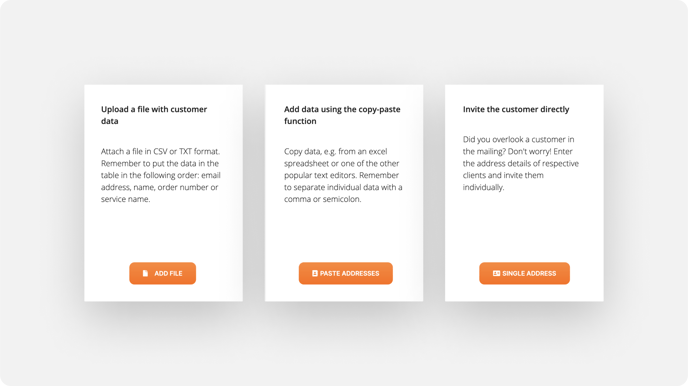
Remember:
For product review invitations, product codes (product IDs) are required.
These can be found in the last column of the Products > Product List tab. Ensure these have been imported into the TrustMate system, for example, via a correctly loaded product feed.
Otherwise, you won't be able to manually send product review invitations.
Method 1 - Data file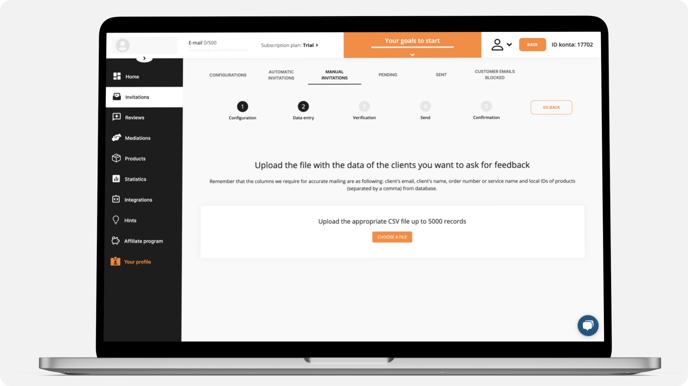
Sending invitations this way allows you to easily invite many customers at once by attaching the appropriate file.
How to send invitations manually using this method?
- Click the "Add File" button.
- Select the configuration you want to use for sending the invitation.
-
Next, click "Choose a file" and attach a file in CSV or TXT format. Make sure to arrange the data in the table in the following order:
-
e-mail address,
-
first name,
- order number or service name
- optionally, product ID(s) (separated by commas)
-
- Ensure the imported data is displayed correctly and click "go further".
- On the next screen, you will see a summary of the prepared send-out, including the configuration name, sender name, the number of days after which invitations will be sent, and the number of correctly uploaded customers.
-
You can now send your invitations using one of two buttons:
- Send - Invitations will be queued and sent according to the number of days specified in the configuration.
-
- Send as soon as possible - Invitations will be sent as soon as possible, ignoring the specified number of days in the configuration.
-
After selecting the sending time, you will see a message indicating that the invitations have been queued. Now, you just need to wait for the customers to leave their reviews. 😉
Method 2 - copy and paste
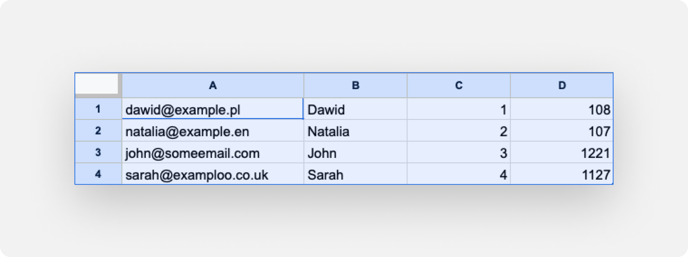
With this method, you can copy data from an Excel spreadsheet or a popular text editor.
If the data is separated by commas or semicolons, or if it is in separate columns, the TrustMate system will automatically separate and appropriately assign it according to the required information.
How to send invitations manually using this method?
- Click the "Paste Addresses" button.
- Select the configuration you want to use for sending the invitation.
-
Next, copy the data from the source document and paste it into the "Provide data" window in the panel.
Remember!
The column order is crucial, exactly as in the example above.
Additionally, TrustMate will automatically check the syntax of the proposed email addresses. If the system finds errors (e.g., missing spaces, incorrect domain endings), it will highlight the corresponding records.
-
Ensure the imported data is read correctly and click "go further."
- On the next screen, you will see a summary of the prepared send-out, including the configuration name, sender name, the number of days after which invitations will be sent, and the number of correctly uploaded customers.
-
You can now send your invitations using one of two buttons:
- Send - Invitations will be queued and sent according to the number of days specified in the configuration.
-
- Send as soon as possible - Invitations will be sent as soon as possible, ignoring the specified number of days in the configuration.
-
After selecting the sending time, you will see a message indicating that the invitations have been queued. Now, you just need to wait for the customers to leave their reviews. 😉
Method 3 - Single addresses
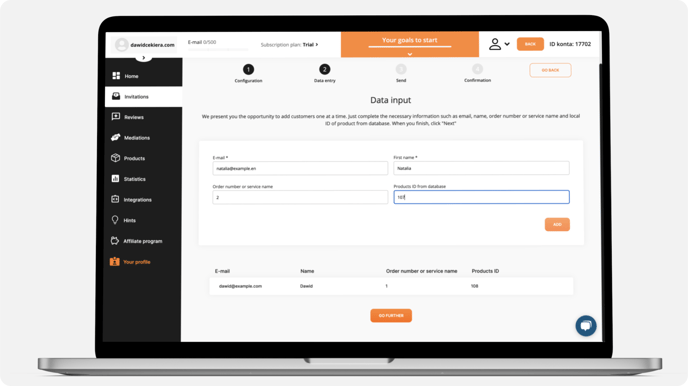
This method allows you to send individual review invitations. Simply provide the email address and complete the customer data.
How to send invitations manually using this method?
- Click the "Single Address" button.
- Select the configuration you want to use for sending the invitation.
- Enter the customer's email address, first name, order number or service name, and product IDs from the database (only for product invitations).
- Click the "Add" button to add the customer's data to the mailing list. You can add multiple addresses this way.
-
When you have added all the recipients, click "go further".
-
On the next screen, you will see a summary of the prepared send-out, including the configuration name, sender name, the number of days after which invitations will be sent, and the number of correctly uploaded customers.
-
You can now send your invitations using one of two buttons:
-
Send - Invitations will be queued and sent according to the number of days specified in the configuration.
-
Send as soon as possible - Invitations will be sent as soon as possible, ignoring the specified number of days in the configuration.
-
-
After selecting the sending time, you will see a message indicating that the invitations have been queued. Now, you just need to wait for the customers to leave their reviews. 😉
What to do in case of mistakes?
Invitations sent using the "Send" (orange) button:
If you used the "Send" (orange) option and your invitations had a delay set, go to the Invitations > Pending section to manage the invitation queue. You can delete them, change the sending date, and use filters to easily find specific invitations.
Invitations sent using the "Send as soon as possible" (blue) button:
If you chose the "as soon as possible" sending option with the blue button, you still have a few minutes to cancel or delay them. Go to the Invitations > Pending section to do this.
Note
Remember that when sending invitations to your customers, you are obligated to do so in accordance with the applicable regulations.
If you don't ask customers for consent directly, include the appropriate consent in your store's terms of service or privacy policy.
You can find the text in the TrustMate panel under Invitations > Automatic invitations.